

Practical Tips for Your Next PowerPoint Presentation
Last week, a subject matter expert in the marketing and social media industry asked for my advice on presentation software for a course they are developing. They were hesitant about using Microsoft’s PowerPoint application and were looking for alternatives, having heard about the phenomenon commonly known as Death by PowerPoint.
To be sure, there are alternatives.
And concerns about this horrible affliction are valid. Many of us have fallen victim to the condition.
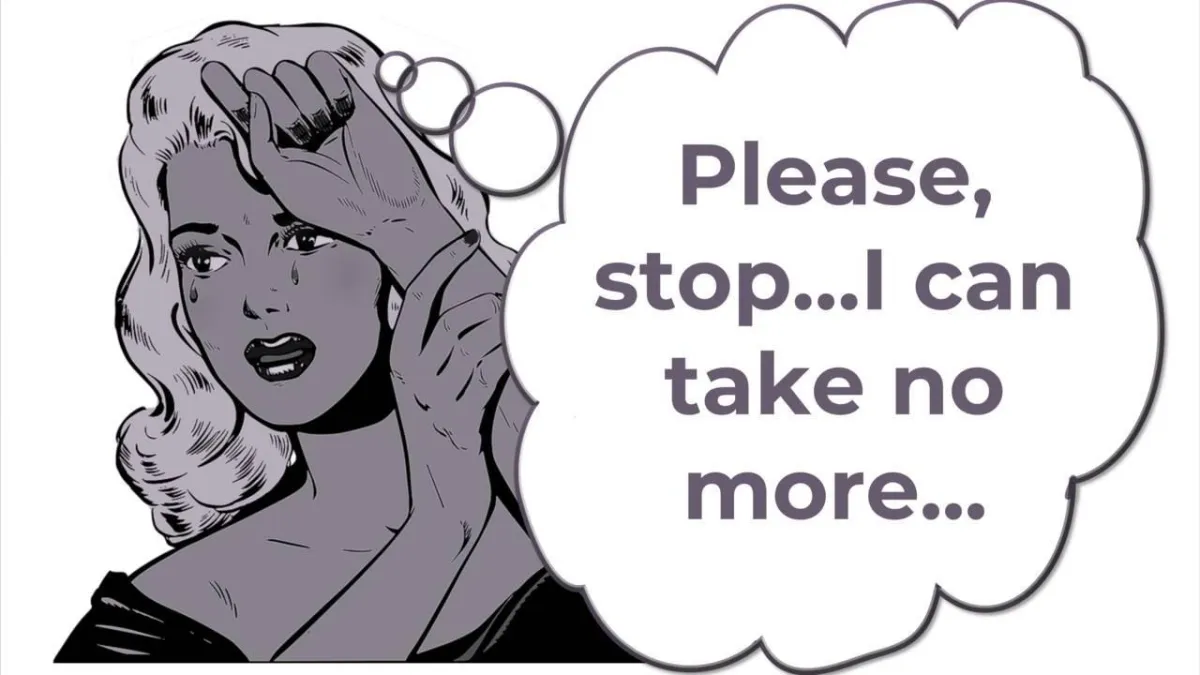
There are countless articles and online commentary, books, even comedic videos and cartoon depictions for the ghastly ennui that plagues so many seminars.
Presentation decks with text-heavy slides and the ineffective use of display settings, animations, and transitions, paired with a facilitator who then feels obliged to read each slide, word for word, can elicit participant boredom and downright disengagement.
But PowerPoint doesn’t have to be a ‘death’ sentence.
In fact, I love it.
Shamelessly.
It’s a solid program with incredibly versatile features that can liven up any presentation, if only leveraged so by the mortal in control of the clicker.
I talk about presentation strategies extensively in my workshops, and here are just a few quick hits that might help you to embrace PowerPoint and liven up your delivery:
Minimize Text. Seriously. Yes, words are important and often are necessary to get our point across, but consider whether those words need to appear in full sentence form on your slides. No matter what any layperson claims, humans are not good at multitasking. It’s scientific fact. If you have text heavy slides, your participants are either trying to read silently along at the same speed you recite, or they are reading the slide rather than listening to you speak. Period. Using pictures, graphs, diagrams and other visuals are impactful and add weight to your speaking points. Text, on the other hand, often subtracts from your message.
Zoom In. I totally get it. Perhaps you are an engineer or doctor or lawyer and have incredibly detailed maps and diagrams and forms, or you are a subject matter expert who trains others on systems and programs. The very nature of the material you incorporate into your presentations might require an amplified look. If you anticipate the need for zooming in to a particular area of a slide, there are two features you may wish to explore:
pre-program your presentation with Zoom Animation to Grow/Shrink the object to a specific percentage of original size, and couple that with a Motion Path for additional emphasis. The challenge here is that your object might pixelate and become unclear as it expands, so testing this first before showing to an audience is particularly important.
leverage Presenter View. Depending on the projector options, if connected to a computer or laptop and using the (see below) Display Settings option (1), you can then Zoom (2) in on a particular area of the current slide. This feature allows the speaker to Choose an area on the Current Slide (3) for which to amplify on the Slide Show visible to participants. That small section then makes up the entire projected image.

Hide the Slide. Whether you need to draw attendees’ attention off the slide deck (e.g. to another object in the room or for a group activity), and later back to you as the speaker, temporarily hiding the slides by toggling between a black or white screen and your actual slide can be an effective method for redirecting focus. This is so simple, it might be mind-blowing. During a PowerPoint presentation, hit B or W on your keyboard to activate the alternate black or white screen, and again to bring back the slide. I know, right!? Simple, but useful. Altering where your audience physically looks can subtly shift the focal point, and these lesser used options can re-engage your participants by drawing their attention away from the slides.
In my view, PowerPoint is a powerful presentation program, and should supplement the teaching, not dominate it.
If you tend to read off the slides or bypass the benefits of the program’s functionality, you may indeed be subjecting your participants to a mild form of Death by PowerPoint – instead, try incorporating the above suggestions to rock your next presentation.
Viva la PowerPoint!
-Tisha Parker Kemp
Original photo of Ms. Teary from OpenClipart-Vectors on Pixabay; modified by Yours Truly